


Last Updated on April 10, 2026 by Alphabet Insider Staff
Stop guessing between viewer and commenter and start using the right Google Drive sharing permissions for every document.
Advanced Google Drive sharing settings can make the difference between a clean, secure workflow and a messy permissions nightmare. Understanding how “Viewer” and “Commenter” work in practice is the key to getting collaboration right.
I tested Google Drive before it launched in 2012 and it’s now my go-to file sharing application for professional and personal use.
What viewer vs commenter really means
The three primary roles available to you when you share a file or folder through Google Drive are Viewer, Commenter, and Editor. The Viewer role has the most limitations placed on it and is primarily used when someone only wants to have their eyes on something; they won’t be able to alter or interact with the file itself. A Commenter can provide input about an edited document without having the ability to edit the original content themselves.
Viewer access allows someone to open and read the file, but they cannot type into the document body, move content around, or change formatting. Commenter access adds the ability to highlight text, add comments in the margin, and in many Google Docs, Sheets, or Slides, make suggested edits that the owner or editors can accept or reject.
Why this difference matters
The gap between viewer and commenter looks small, but from a workflow perspective it is huge. Viewer is ideal for one‑way sharing, like sending a final report to stakeholders who just need to read and reference it. Commenter is better for draft work, review cycles, and any scenario where you want structured feedback while keeping control over the final copy.
If you give someone commenter access when they only needed viewer access, you open up more interaction than necessary, which can clutter the document with unexpected comments or suggestions. If you only give Viewer access to someone who is supposed to review content, you push them into awkward workarounds like emailing feedback or leaving notes in a separate document.

Advanced sharing controls that shape permissions
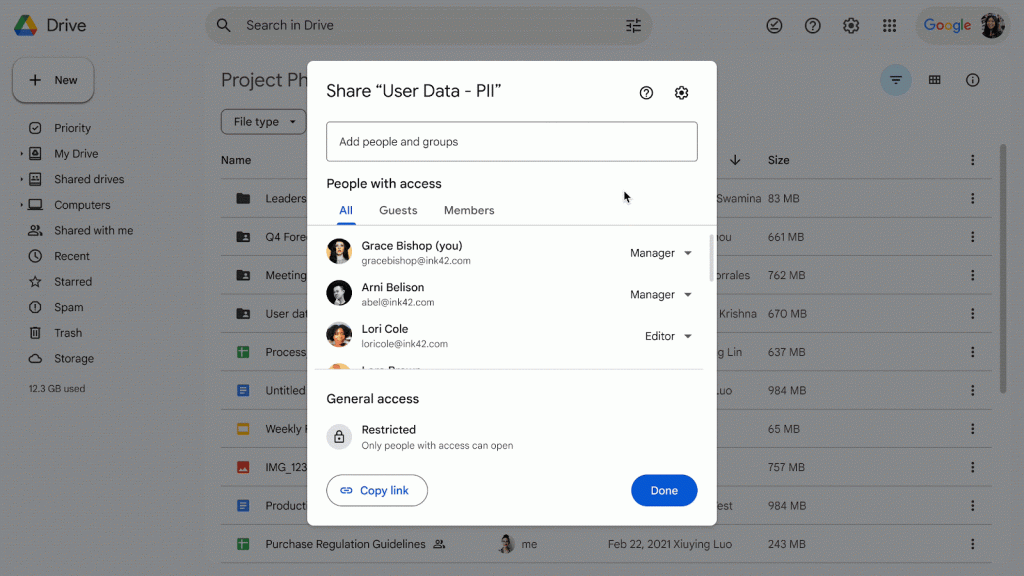
Google Drive offers advanced controls that govern how viewer and commenter behave. You may limit sharing to specific people, restrict who may reshare, and decide whether people with viewer or commenter access may download, print, or copy the file. These options are especially helpful when you’re sharing sensitive material like internal financials or early product mockups and roadmaps.
For files you share with “anyone with the link,” you can still choose whether link holders are viewers, commenters, or editors, but you lose the precise control you get with named accounts. In many organizations, best practice is to use restricted sharing with named users for anything that is not meant to be broadly accessible, then layer on viewer or commenter roles based on what each person actually needs to do.
Google Drive sharing permissions vs viewer comments
When people talk about “Google Drive sharing permissions vs viewer comments,” they are often mixing up two different ideas: the core permission level and the comment layer that sits on top. Sharing permissions determine whether someone is a viewer, commenter, or Editor. Viewer comments, on the other hand, are about whether people can give feedback, and that is tied to the commenter role or to suggested edits, not to pure viewer access.
A viewer cannot leave comments in the document itself, so if you want in‑document feedback you must at least grant commenter access. If you only want people to react outside the file, for example via email or chat, viewer is enough, which can be safer for documents that should not accumulate in‑file commentary over time
Matching permissions to real workflows
The cleanest way to think about Drive permissions is to map each project phase to a default role. Early in a project, when a small core team is shaping the content, editor access makes sense for that group, while stakeholders may only need commenter access for structured feedback. Once the document is finalized, most audiences should be shifted down to viewer, which freezes the content while still keeping it accessible.
This phased approach avoids the common problem of documents staying over‑shared long after a project ends. When everyone remains an editor or commenter, comments pile up on what was supposed to be a final deliverable, and the risk of accidental edits or overwriting increases. Tightening permissions as documents move from draft to final keeps the history clean and reduces confusion about what version is “official.”
Using commenter instead of editor for control
In many teams, editor becomes the default because it feels simpler to grant full access. That convenience comes with obvious downsides, especially when working with external partners, contractors, or clients. Editors can change the content, accept or reject suggestions, and reshare the file with others. Commenters, by comparison, can only annotate and suggest, which naturally creates an approval layer between feedback and the final copy.
Choosing commenter instead of editor is one of the easiest ways to prevent accidental changes. Reviewers can still mark up the document, but they cannot quietly rewrite sections in a way you might miss. This is particularly useful in regulated environments or anywhere an internal owner needs a clear record of who approved what and when.
Locking down viewers: downloads, prints, and copies
For situations where you want people to read a document but not retain a local copy, Google Drive lets you disable downloading, printing, and copying for viewers and commenters. This does not stop someone from taking a screenshot, but it does meaningfully reduce casual data leakage, especially when you share links widely.
This option is helpful for time‑limited or sensitive material, such as internal strategy decks or training content that should not be redistributed. Combined with viewer access and restricted sharing, it gives you a relatively tight control surface without blocking people from actually reading what they need.
Expiration dates and temporary access
When you know someone only needs access for a short period, temporary sharing is safer than relying on memory to revoke permissions later. Many organizations recommend setting expiration dates on access for external collaborators or short‑term projects. With expiration, you can grant commenter access for a review window and let Drive automatically downgrade that access after a set date.
This avoids the common situation where contractors or former employees keep lingering access to live documents. Over time, that long tail of access can become a real security issue, especially if those people reused passwords or their accounts are compromised. Regularly auditing who has viewer, commenter, or editor access and using expirations where possible is a practical way to reduce that risk without adding much overhead.
Shared drives and organizational policies
In Google Workspace environments, Shared Drives add another layer of control, particularly over who can share outside the organization and what roles they can assign. Shared Drives keep files owned by the team rather than individuals, which prevents access from vanishing when someone leaves. That ownership model pairs well with clear rules about who can grant editor, commenter, and viewer access.
Some organizations also lock down external sharing or require more restricted defaults, such as viewer‑only for all outside domains unless an admin approves otherwise. Within those constraints, understanding how viewer vs commenter works helps staff stay compliant while still collaborating efficiently, instead of bypassing policy with personal accounts or unauthorized tools.
Practical rules for choosing viewer vs commenter
If you need a quick mental model, think of the viewer as “read‑only reference” and commenter as “feedback channel.” Use a viewer for finalized reports, policies, documentation, and anything that should not change casually. Use commenter when the main purpose of sharing is to collect input and track it in context, but where you still want a gatekeeper for actual edits.
Any time you feel tempted to make someone an editor by default, ask whether a commenter would give them everything they actually need. For many stakeholders, the ability to question and suggest is enough, and it keeps your source material safer and more consistent. Over time, building that habit across your team reduces version chaos, protects sensitive content, and makes the differences between your Google Drive sharing permissions and the comments they allow feel intentional instead of accidental.


3 thoughts on “Advanced Google Drive Sharing Settings: How to Control Access Like a Pro”